Requirements and initial setup
In order to install Linux on the PS4, a lot of things are needed. You may have to buy some gear to make this work.
Requirements
You'll need:
- Preferably an extra mouse and keyboard, but the main ones you use are fine as well
- A USB hub to connect all the peripherals is recommended
- A computer
- An internet connection
- (Optional) - one or more USB drives
- If you want to install to an external drive, you can use a USB pendrive or HDD, but it's recommend to have a SATA SSD and a SATA to USB adapter (preferably one that supports UAS).
Storage devices to install to
Before starting, you need to choose method of installation.
- Internal HDD
- Baikal still unsupported, very slow, needs free space
- External HDD/SSD
- External USB Hard Disk Drive or USB Solid State Drive. Use a USB 3.x capable disk and cable for the best performance
- External SATA-USB or NVMe-USB adapter (if using a SATA/NVMe drive)
- You can use a pendrive, but I highly advise NOT to because of the slow speeds.
PS4 system
Some configuration is necessary on the PS4's side before we load Linux.
Things to note down
Note down what you see in "Settings -> System Information":
- System software version
- Southbridge
- Your GoldHEN or ps4hen version
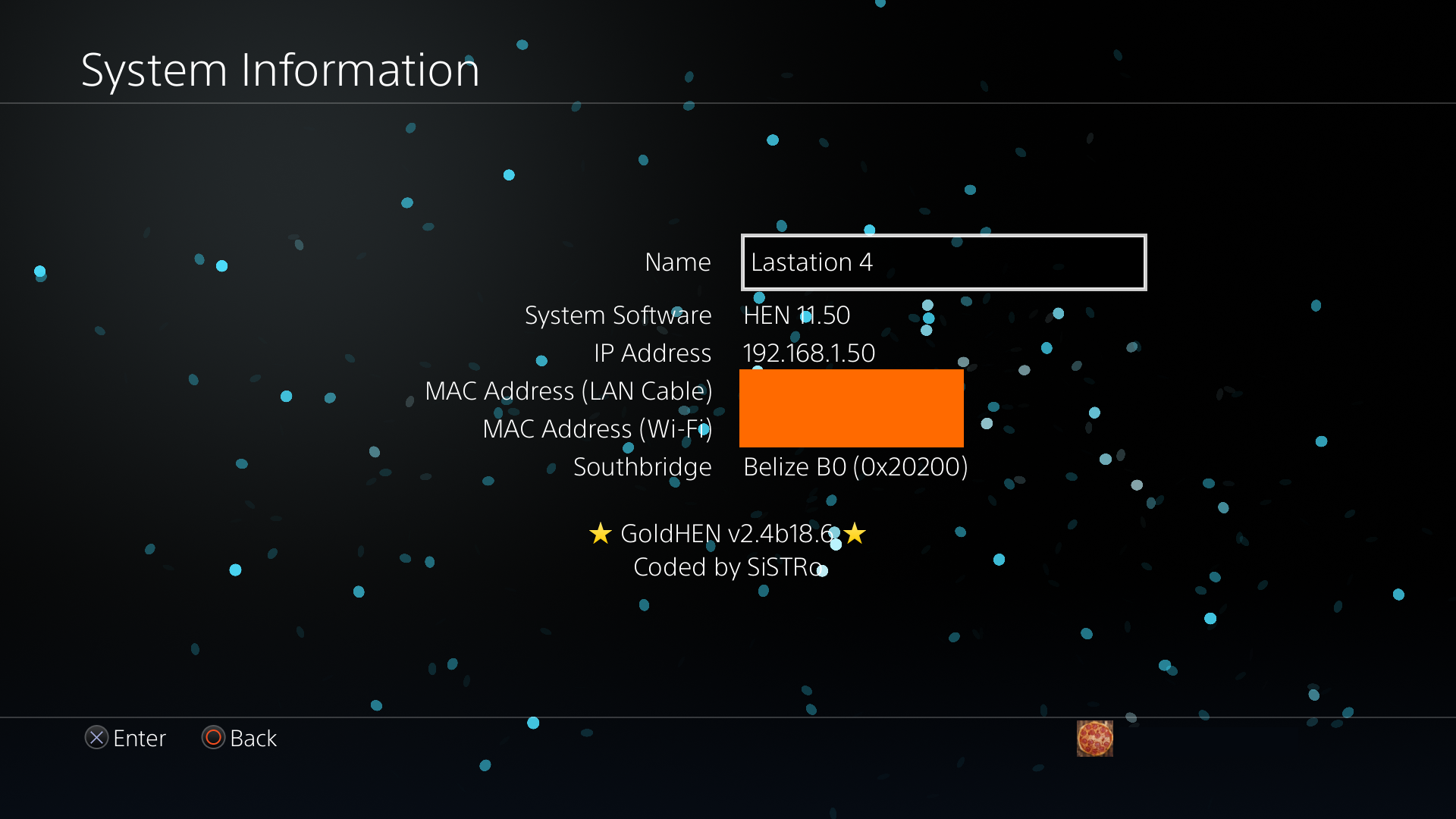
In the example case, the latest version of GoldHEN is used (minimum for this guide is v2.4b18.5), running on a Belize PS4 Slim.
HEN
You need a system that is already jailbroken and has a homebrew enabler (such as GoldHEN or ps4hen) running.
TIP
To jailbreak your PS4, you need firmware 12.52 or lower (In the future likely 13.02 or less)
Refer to Modded Warfare on YouTube if you haven't already.
In order to input text on your PS4, you can't use the PS4 built in keyboard, as that is not available on Linux. You must have a keyboard and mouse combo ready to use with your PS4.
Payload server settings
Remember to check the GoldHEN "Server" settings (or ps4hen's equivalent if you're using that) so that they are both enabled:
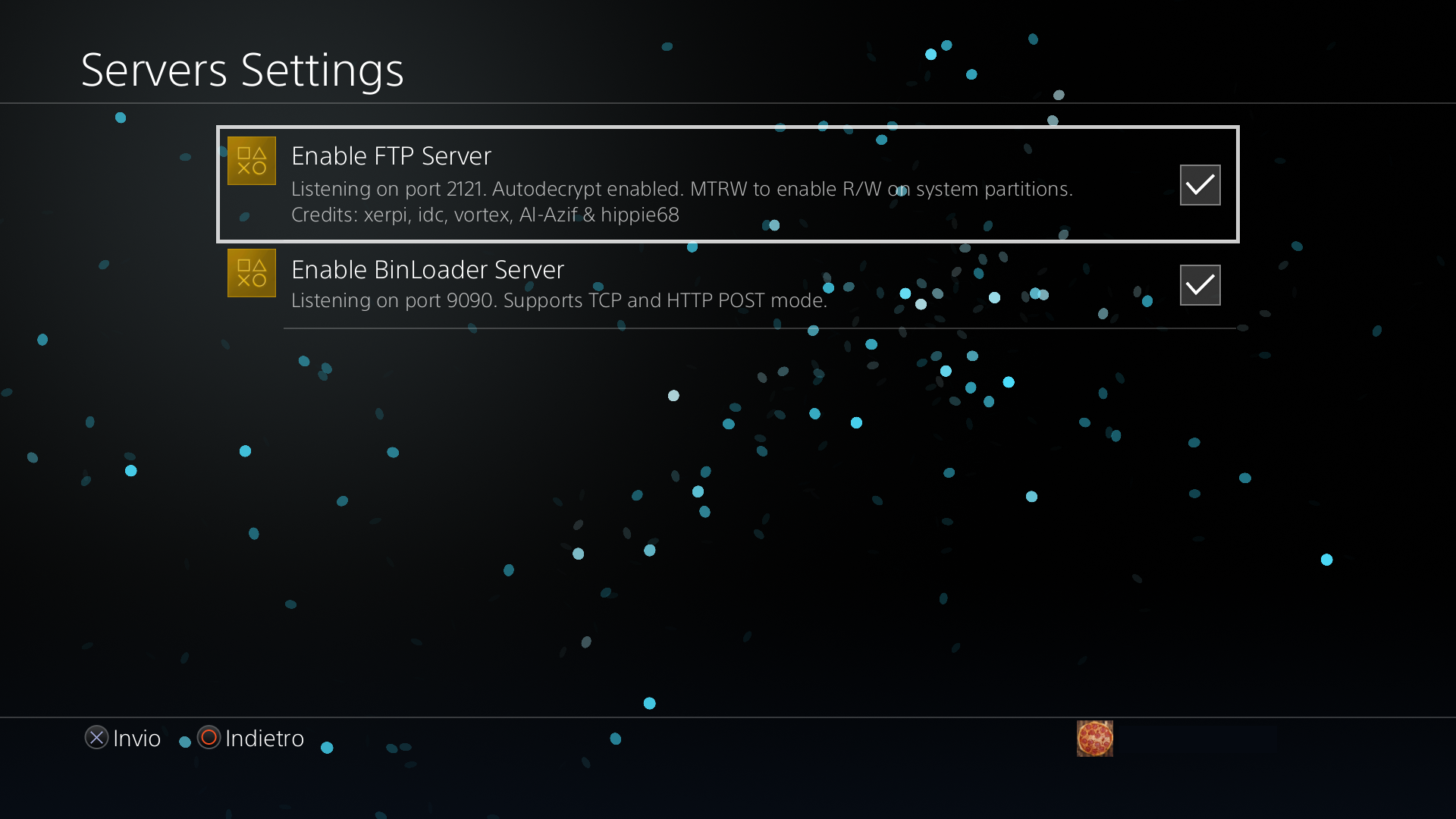
These are required to be able to move files and load Linux later into the guide.
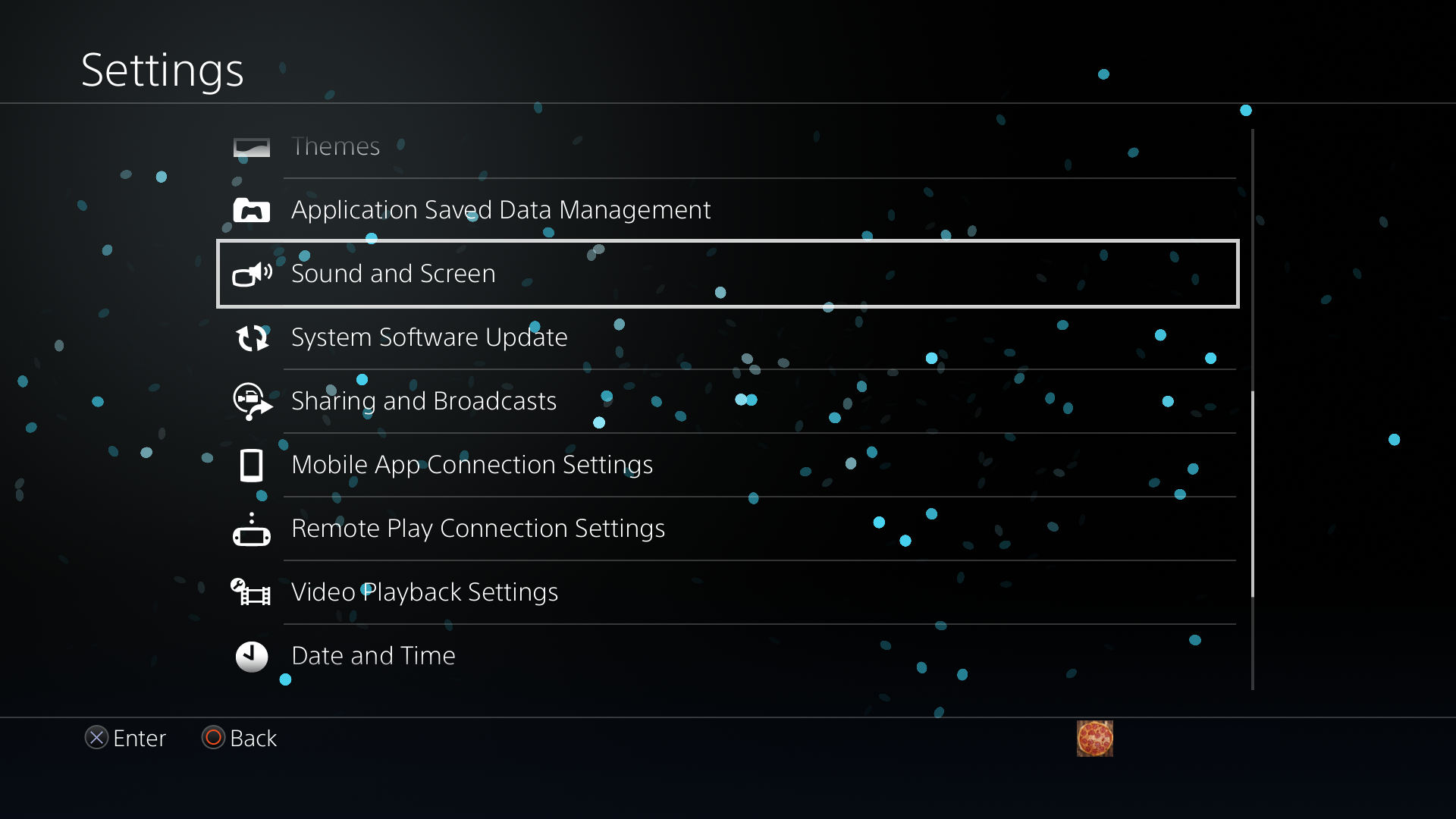
Settings
These need to be taken as a precaution, not as a necessity, as they aren't actually needed anymore. However, as some issues may arise on certain consoles, you should still go and tweak these settings.
"Audio and Display" settings
Resolution
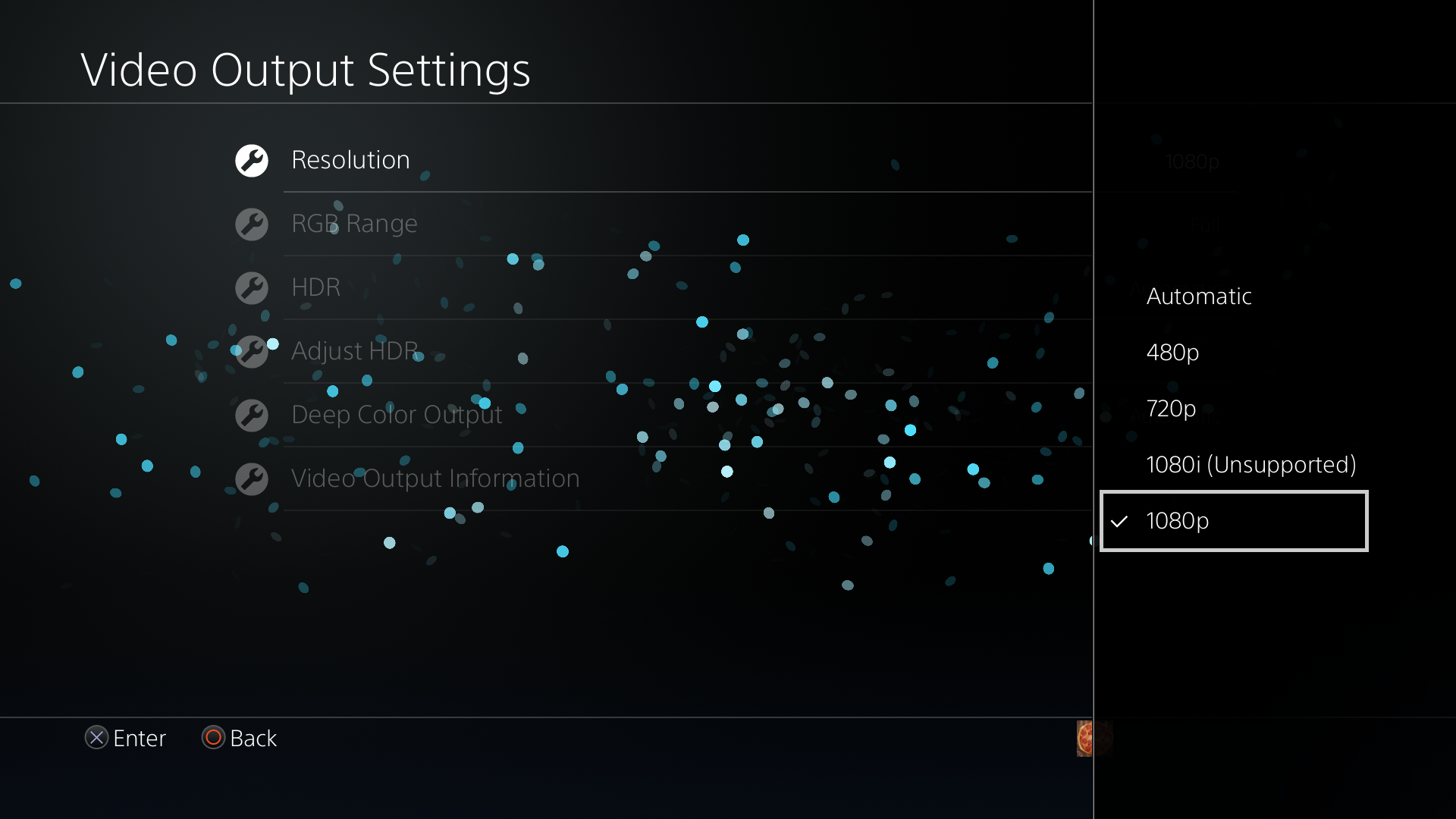
- Set your resolution to 1080p (or 720p)
- 4K may not work on PS4 Pro. Try 1080p first.
- Not always required? Works on Belize in Automatic.
RGB Color gamut
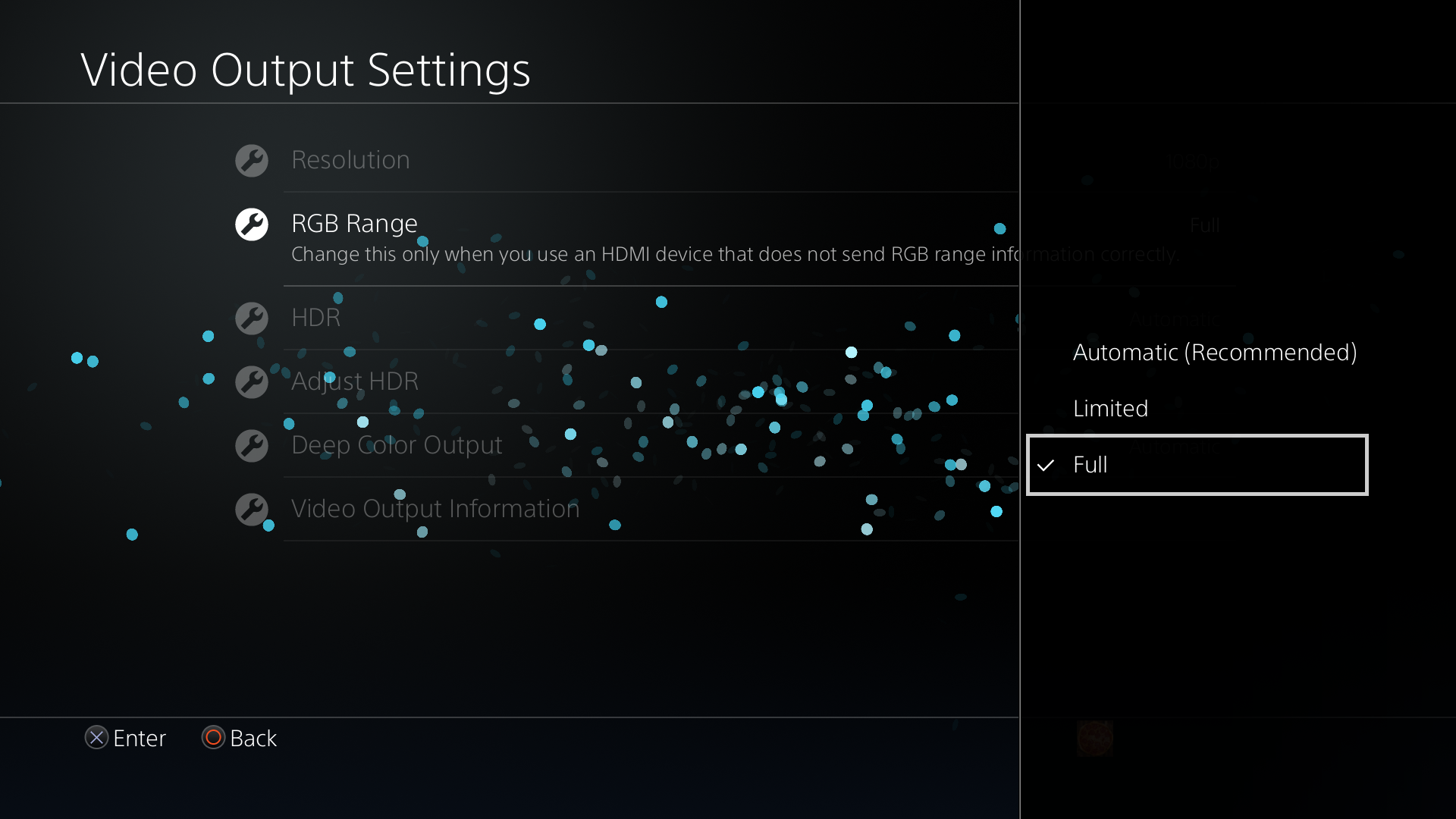
- Set your RGB color gamut
- It may be automatically set to "Limited" even if your display supports "Full".
- "Full" may not work on really old displays. If the image looks weird, set it to "Limited".
"System" settings
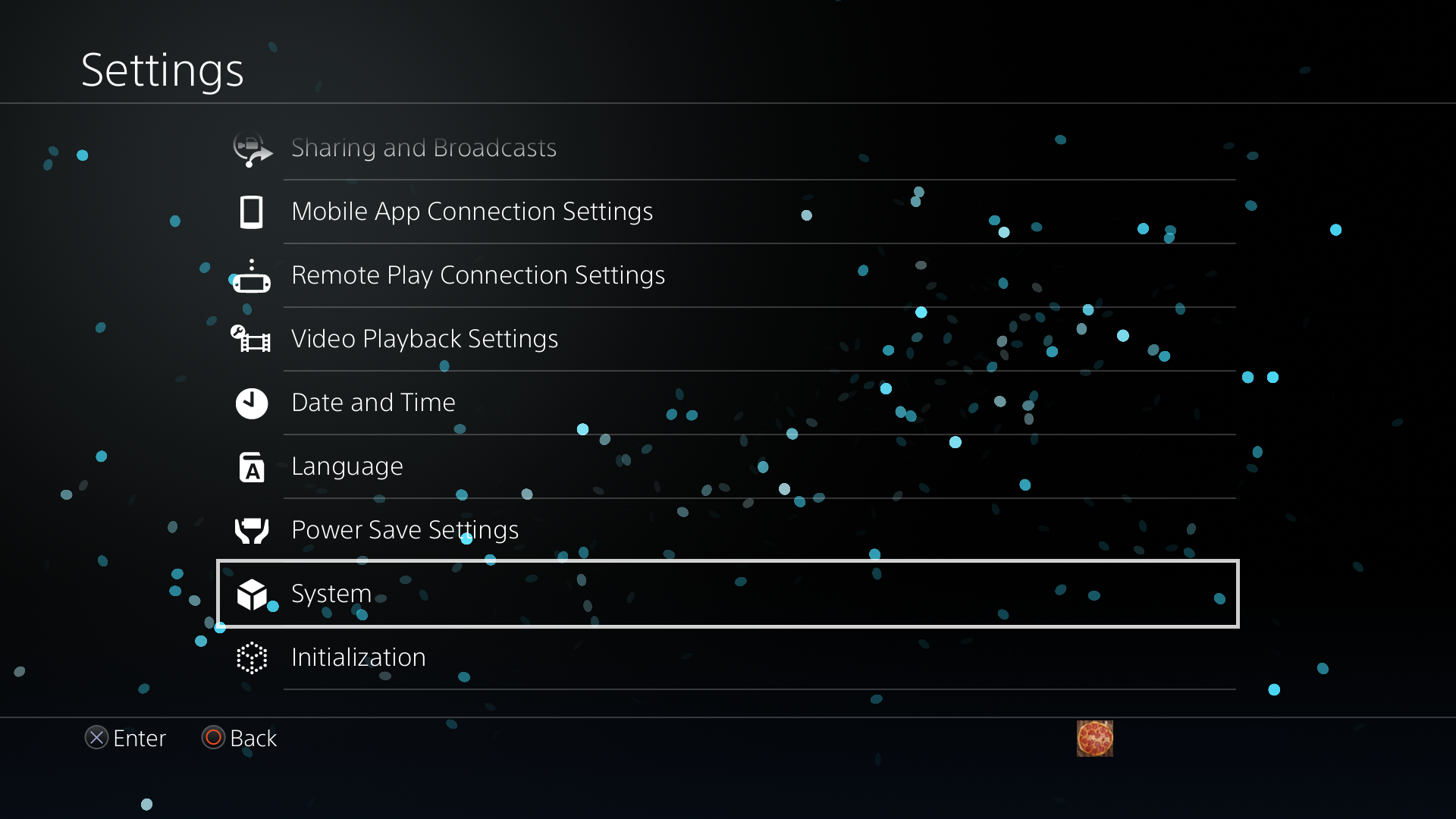
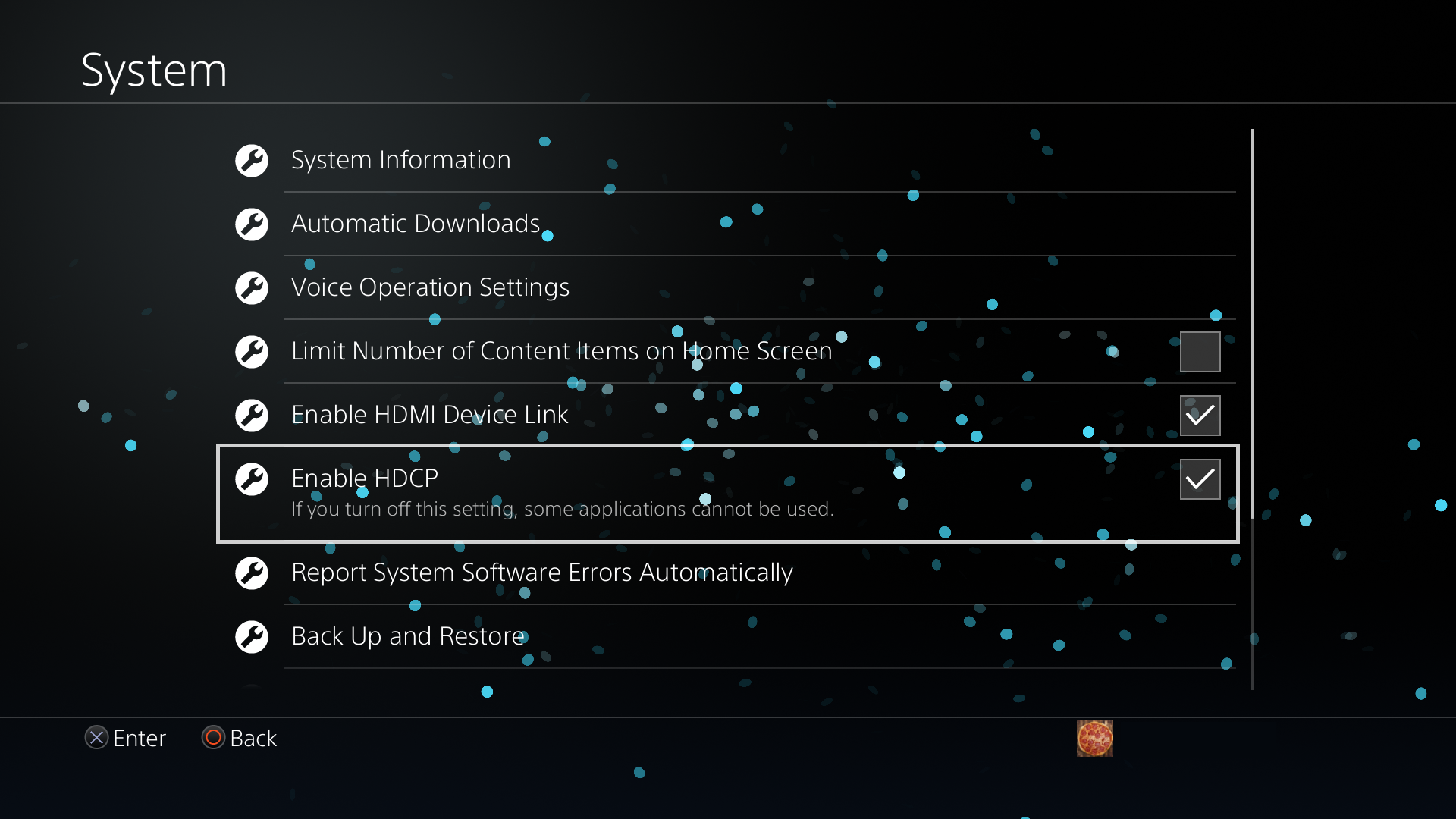
- Check your internet connection
- Some models have issues if they aren't already connected to the internet.
- Ethernet may not work on PS4 Pro Baikal
PC
A way to connect to your PS4 to transfer files is needed. A PC is recommended. You will also need an internet connection.
You'll be accessing your PS4's filesystem via FTP. You can also transfer files with a USB drive if you feel so inclined.
FTP connections
In order to do that, open up your FTP file manager of choice.
Windows
- The built-in Windows File Explorer
- This one likes to crash the desktop if it can't connect, be careful
- WinSCP (recommended, using the simple interface)
- Filezilla
Linux
- Built in File explorer, if yours allows it.
- Filezilla
MacOS
- Filezilla