Internal HDD setup
Check your PS4 storage, as you'll need to choose the size of the installation. Leave some free space in your console - remember that the PS4 doesn't report the space taken internally by Linux.
Type 1 payloads: FTP to your PS4. Go to the /user/system folder, and create the folder boot/ and place your bzImage (and bootargs.txt if you have it; this is currently not suggested with the Modded Warfare initramfs as it causes display issues, and a fix hasn't been tested yet) and initramfs in there alongside your distro. Type 2 payloads: FTP to your PS4. Go to the /data folder, and create folder called linux and then boot and place your files there.
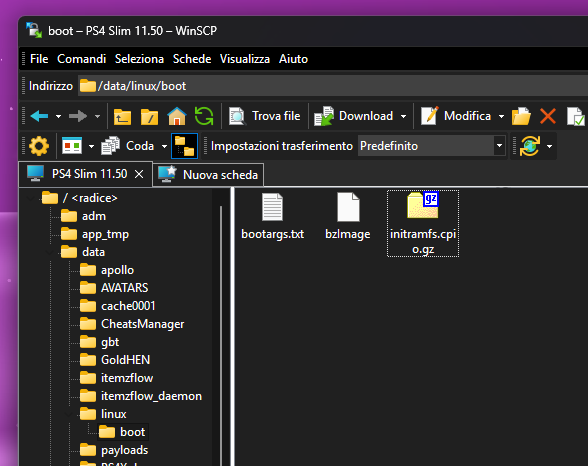
When installed, you can remove your Linux installation by removing the above files, and the "linux.img" found in /user/home/ folder.
Launching Linux Rescue Shell
After that, either launch your payload with Payload Guest, or use a payload website to load them.
Payload website hosts
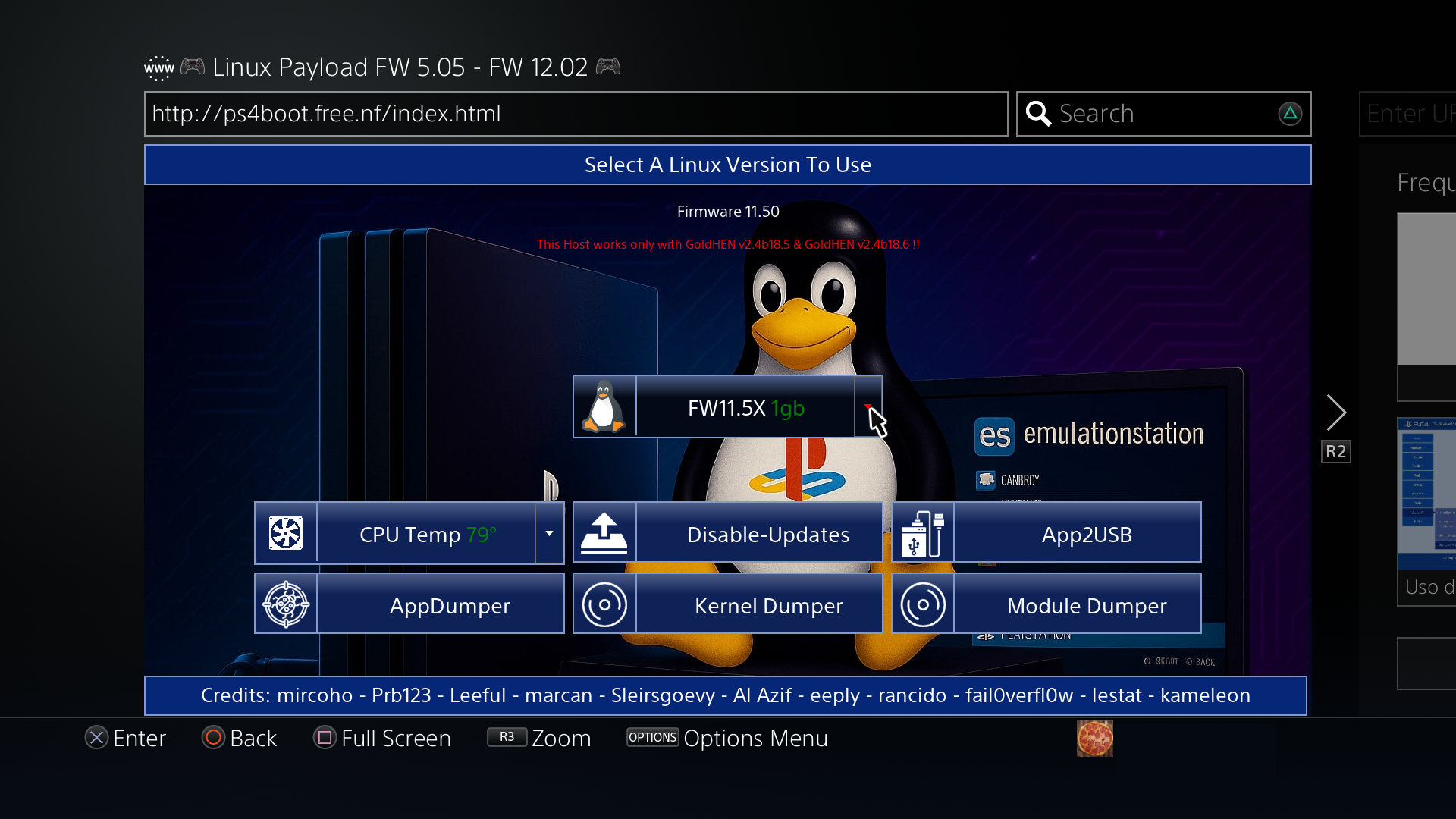
Change your target firmware (in the picture it's firmware 11.50). If it doesn't have any particularly append, it's for both Aeolia and Belize.
Do NOT use Pro payloads on non-Pro consoles.
- ps4boot.github.io (5.05/6.72/9.60) (Webkit method)
- ps4boot.free.nf/index.html (5.05-12.02) (GoldHEN method, works only with HTTP not HTTPS)
WARNING
Use a 1GB VRAM payload for installation and first boot.
Afterwards, 2GB is recommended.
Local payloads
It's also possible to load these payloads locally.
In order to do that, go download them here:
- Install "Payload Loader" on your PS4 to load the payloads locally
- Extract from the file and copy the payloads for your firmware and console to /data/payloads/ so Payload Guest can find them, if directory doesn't exist create it.
- Enable "see file extensions" on Windows Explorer or what you're using
- If it doesn't have any particularly append, it's for both Aeolia and Belize
- Remember to check sometimes to see if there's any updates
Installation commands
Now that the storage is covered, you'll be sent to the Rescue Shell.
TIP
If you get an error, go to the Installation issues section.
Internal HDD
- Type
exec linux-install-hdd.sh - Type how much storage you want to use for the installation (check how much free space you have, don't fill up your drive as the PS4 won't report it)
- If it fails, go to the Installation Issues
You should already boot into the desktop. If it doesn't, run
resume-bootWARNING
Don't run resume-boot more than twice, or it'll crash the system - use CTRL+ALT+CANC to reboot instead.